
Tower Lab Controls
Confirmed HUD actions only. Place in any open space, move freely, right-click for sell and tech trees.
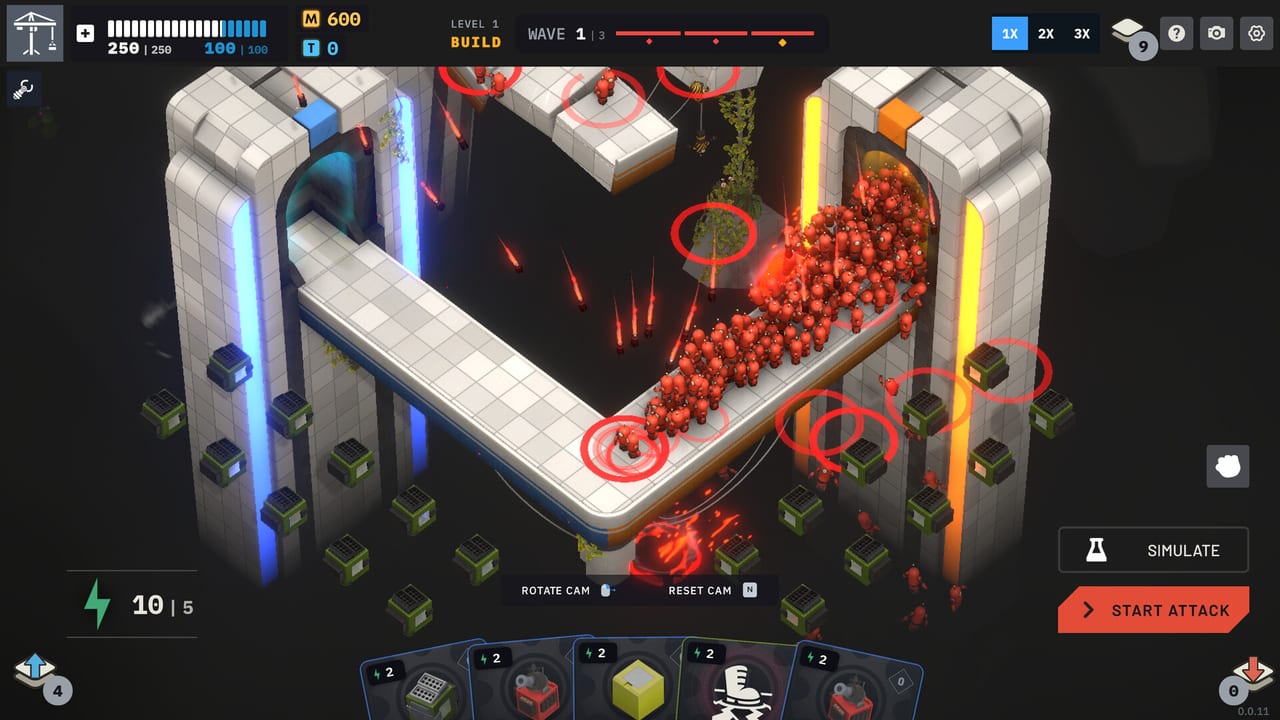
Tower Lab’s cockpit is a HUD with a handful of confirmed shortcuts, a mouse that is allowed to put a tower anywhere open, and a right-click menu that replaced a lot of guesswork during the demo. Steam Early Access is scheduled for September 7, 2026. This page lists what the HUD actually labels. It does not fill empty rows with WASD, Q, E, or Space just to look like a shooter wiki.
If you need the rules those buttons serve, read how to play and getting started. If you need to know whether the sim will run, read system requirements. Hardware and binds are different questions.
Confirmed HUD shortcuts
These actions appear on the in-game HUD. Keys are listed only when the HUD (or a published patch) names them.
| Action | Binding | What it is for |
|---|---|---|
| Rotate Cam | On-screen HUD | Orbit the pad so you can see edges, portals, and leaks |
| Reset Cam | N | Snap the camera back when a rotation leaves you blind |
| Toggle Cooldown | Tab | Show or hide tower cooldown states so you know which machine is ready |
| Move Tower | On-screen HUD | Reposition a placed tower; placement is not a locked grid |
| Focus Cam | F | Jump the camera to what you care about mid-fight |
| Simulate | On-screen HUD | Test the physics without committing the same way Start Attack does |
| Start Attack | On-screen HUD | Release the wave after you have spent energy and placed cards |
| 1X / 2X / 3X | On-screen HUD | Speed the sim once you trust the machine |
| Tower context | Right-click | Sell, read tower info, open the tech tree |
If a future patch prints extra keys on the HUD, this table will gain rows. Until then, missing WASD is intentional.
Mouse placement and free movement
The store pitch is the control scheme: place towers in any open space, move them freely, sandbox first. There is no “must snap to path tile” rule. That is why Move Tower is a first-class HUD action instead of a shameful refund.
Practical mouse loop:
- Spend energy to play a card from the hand.
- Click an open volume on the lab — corners and edges matter more than center tiles.
- Start Attack when the wave preview looks solvable.
- If the pack leaks, pause your ego, Move Tower, Reset Cam with N if you rotated into a useless angle, and try Simulate before you burn another shop.
- Right-click anything that underperformed. Sell it or open its tree. Do not leave a Fan aimed at the spawn because you are afraid to touch it.
Steam lists a Mouse Only Option. You can play the upcoming build without treating keyboard movement as mandatory. Playable without Timed Input and Save Anytime are also listed, which matches a strategy game that lets you think between waves. None of those flags are an excuse to skip wave preview in the Vend-O-Lab.
Right-click context and tech trees
A demo patch added the right-click tower context menu after placement: sell, tower info, tech tree. Tech points (T) live there. Matter (M) still lives in the shop. Do not confuse the two. You farm Matter by knocking robots off the map, then you may buy a tree node in the Vend-O-Lab or inspect the tree on the pad.
Right-click is also how you discover you placed the wrong tool. A Constructor off the Scrap Line is a sell. A Gravity well in the center of a wide pad is a Move Tower, not a new purchase. The upgrades guide explains what nodes do; this page only tells you how to open them.
On Steam Deck (Playable, not Verified), right-click is a trackpad or trigger mapping problem. Use Steam Input. This wiki will not pretend there is an official gamepad legend until the HUD shows one.
Speed, simulate, and start attack
Simulate and Start Attack are not the same button with different art. Simulate is how you ask the physics engine a question. Start Attack is how you accept the wave. New players mash Start Attack, watch a Grow pack walk out the exit, and blame the deck. Old players Simulate, Move Tower, then Start Attack at 1X, then raise speed only when the edge is eating bodies.
1X / 2X / 3X are HUD speed controls. They tax the GPU listed on system requirements. If 3X stutters on a GTX 960-class card, that is a hardware floor, not a broken Fan. Drop to 1X before you reroll the deck.
Toggle Cooldown on Tab is the other combat HUD skill. Physics towers have recovery. If you cannot see cooldown, you will place a second Tesla when the first was one second from firing. Tab is cheaper than M400.
Accessibility features on Steam
Listed for the upcoming Steam build, without inventing extras:
- Mouse Only Option
- Playable without Timed Input
- Save Anytime
- Camera Comfort
- Custom Volume Controls
- Achievements
- Steam Cloud
- Leaderboards
- Steam Workshop / level editor
- Photo Mode
- Family Sharing
Camera Comfort is why Rotate Cam and Reset Cam (N) matter: if motion bothers you, reset often and avoid ornamental spins. Custom Volume is separate from gameplay. Save Anytime matches a single-player lab; you are not locked into an online raid timer. Photo Mode is for bragging a contraption, not for pausing a ranked Endless run you already leaked.
Family Sharing and Cloud do not change binds. They change who can open the upcoming EA build on which machine. Leaderboards and Workshop assume you can finish a pad cleanly enough to share it.
What this page will not invent
No WASD camera unless the HUD says so. No unconfirmed pause key. No controller face-button chart. No “hold shift to rotate.” If a YouTube overlay disagrees with the HUD, trust the HUD.
The tools hub is the parent of this table. Getting started still owns your first energy spend. How to play owns the knockoff rule. After Early Access unlocks, if Play Tug Studio prints a full key list, this article will grow. Until then, the skill is mouse placement, N when you get lost, Tab when you get greedy, F when the camera is looking at the wrong void, and right-click when a tower is lying to you.
Frequently Asked Questions
Quick answers for new Tower Lab players.
What are the confirmed keyboard shortcuts?
Reset Cam is N, Toggle Cooldown is Tab, Focus Cam is F. Rotate Cam, Move Tower, Simulate, Start Attack, and 1X / 2X / 3X are HUD actions. Right-click opens sell, info, and the tech tree. This page will not invent WASD.
Can I play with mouse only?
Steam lists a Mouse Only Option. Placement is click-to-place in any open space, then Move Tower as needed. Pair this with how to play for the energy loop those clicks spend.
How do I open a tower tech tree?
Right-click a placed tower. The context menu covers sell, info, and the tree. Spending advice lives on tower upgrades, not in this bind list.
Is there an official gamepad layout?
Not on the HUD we are documenting. Steam Deck is Playable, so map mouse and right-click in Steam Input. See system requirements for Deck status.
What accessibility flags exist?
Mouse Only, Playable without Timed Input, Save Anytime, Camera Comfort, and Custom Volume Controls, plus Cloud, achievements, leaderboards, Workshop, Photo Mode, and Family Sharing. Details are in the list above and the tools hub.
Where do I learn the game after I can move the camera?
Start with getting started, then how to play. Controls get you looking at the pad; those guides teach why robots have no health.